Blox Fruits on Mobile: Practice Camera, Movement and One Move Separately
A crowded fight is a poor place to learn which touch gesture moved the camera and which triggered an ability. Build a brief mobile-control drill that separates looking, moving, selecting and acting before combining them in an ordinary encounter.
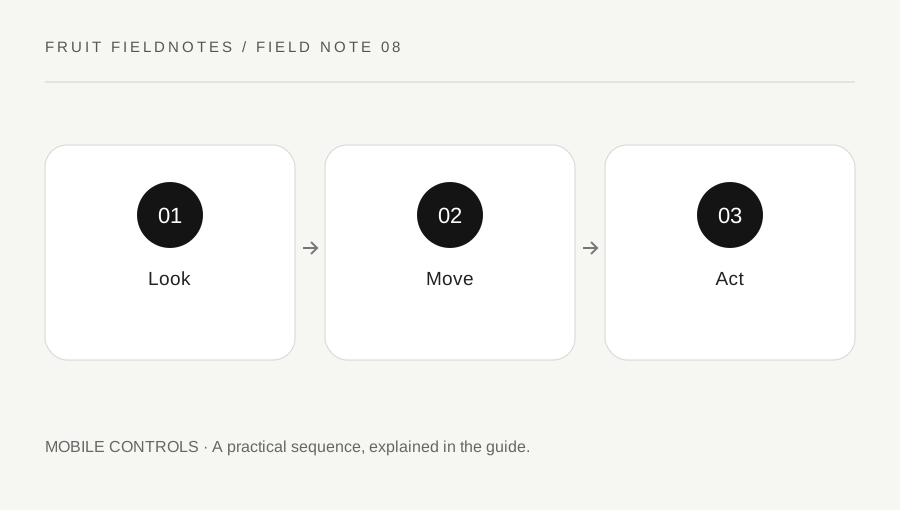
Original explanatory diagram. Examples illustrate a method or decision; they are not claims of personal testing.
Identify the supported controls on this device
Open Roblox's in-experience Help and inspect the controls actually available in Blox Fruits on your device. Touch layouts can differ from keyboard demonstrations, and the experience may determine which camera options are available. Do not assume that a desktop shortcut has a mobile equivalent in the same place.
Choose an ordinary low-pressure area where you can inspect the interface without immediately needing a complex sequence. Find the movement control, camera gesture, item selection and the visible ability buttons for the current kit. Read any requirements or unavailable-move indicators.
For example, if a move button is absent, first check whether the relevant item is equipped and the move unlocked. Repeated tapping in an expected location cannot solve a different equipment state. The first useful result is knowing what each visible control does now, rather than reproducing the hand movement of someone using a different device or account.
Practice looking without adding an attack
Move the camera to a chosen landmark, return to another reference and keep the character stationary if the supported control scheme allows it. Notice which part of the screen you can use comfortably without accidentally selecting another action.
Then add a short movement while maintaining a useful view. Try moving around a simple obstacle and recovering the camera toward the intended route. The purpose is to identify when your view drifts away from the task, not to find a universal sensitivity value.
If a supported camera setting helps, change one option and compare it with the same simple action. Record the original value so you can restore it. Roblox notes that developers may restrict camera modes, so do not promise an unavailable setting. A control that feels comfortable on one screen size may be awkward on another; evaluate the gesture you actually need to perform rather than copying a number without context.
Add one aimed action and observe the miss
Select one unlocked move and inspect its current behavior. Aim deliberately, perform the action and watch where the target and camera end. Do not press the rest of the kit immediately, because that can hide the moment the initial input went wrong.
For instance, if you move successfully but the action faces away from the target, practice the camera alignment before the attack. If the intended button is hard to reach while moving, examine supported controls and adjust your grip or sequence without inventing a layout editor the game may not offer.
Keep practice human-controlled. Do not install an executor, auto-farming package or overlay that claims to make mobile combos effortless. Besides rules and account risks, it removes the observation you need: which gesture produces the wrong result. A useful drill reveals a manageable correction, such as finishing the camera turn before triggering the move, rather than outsourcing the sequence to an unsupported tool.
Test in a simple encounter and retain one habit
Use the combined control sequence in an accessible ordinary encounter. Keep the goal small: maintain the target in view, trigger the intended move and recover orientation afterward. Winning quickly is secondary to knowing whether the controls produced the intended actions.
If performance slows, separate that from input confusion. Roblox provides supported graphics-quality controls, but lowering graphics does not teach an unfamiliar gesture. Conversely, a correct gesture may still feel delayed when the application is struggling. Record the actual symptom before choosing a change.
End with one habit to repeat, such as returning the camera to the target after a movement action. Recheck the layout after a game or platform update and after switching devices. A short drill makes mobile play easier to understand because it isolates the control problem before a demanding fight combines every action at once. It offers a practical learning sequence without claiming that every device supports the same options or that one setup guarantees competitive results.
A practical checklist
Choices are saved in this browser. Reset them here or clear this site’s browser storage.
Questions that come up
Should I copy a keyboard combo directly on touch controls?
Translate its purpose into the controls actually supported on your device. The input sequence and reach may differ.
Can I assume every camera mode is available?
No. Roblox notes that an experience can restrict camera behavior. Inspect the options shown in the current client.
Does lower graphics fix an aiming mistake?
It may help a performance symptom, but control understanding and rendering performance are separate questions.
References & scope
Background references checked on 18 October 2026. Worked examples and diagrams are original teaching material.